While trying to reach the webpage, you can be congratulated by an error message. This disappointing experience is not uncommon and indicates that something went wrong during your attempt to connect. While sometimes these website errors may stand from a user accidentally, they often point to an issue on the website. Each error is associated with a specific HTTP error code. For example, if you stumble on a non-existent page, you will possibly face infamous 404 error. This article explores the most 9 Common Website Errors (+ How They Impact SEO).
What are Website Errors?
Website errors occur when something goes wrong during a page request. It is often indicated by various HTTP errors on the page you are looking for. These errors can arise due to server issues or incorrect user inputs and can manifest as error messages or pages. As a website owner, becoming familiar with common website errors is a vital step towards optimizing your site. This knowledge offers crucial performance information and empowers you to reduce bounce rates and enhance your website’s visibility in search engine results.
- 1xx: Informational – Request received, continuing process.
- 2xx: Successful – The action was completed successfully.
- 3xx: Redirection – Further action needs to be taken.
- 4xx: Client Error – The request contains bad syntax or cannot be fulfilled due to the website’s domain name or a broken URL.
- 5xx: Server Error – The server failed to fulfill a valid request.
How Can Website Errors Affect Your SEO?
Website errors, whether they stem from human mistakes, server overload, or security flaws, significantly disrupt user experience. This disruption can have a ripple effect across various aspects of a website’s performance and reputation:
- Traffic and Sales: Frequent errors can deter visitors, potentially leading to a decrease in page views and transactions.
- SEO Impact: Search engines prefer to direct users to reliable sites. Persistent errors can harm your site’s rankings.
- Security Concerns: Errors related to security breaches can compromise user data and further damage trust.
- Operational Efficiency: Time spent resolving these issues can divert focus from other critical business activities.
- Brand Reputation: Frequent disruptions can tarnish your brand’s image, affecting customer loyalty and retention.
Website Errors and Ways to Fix Them
Below, we explore 15 common website errors, detailing their causes and providing practical solutions to help you resolve them efficiently.
1. 400 Bad Request
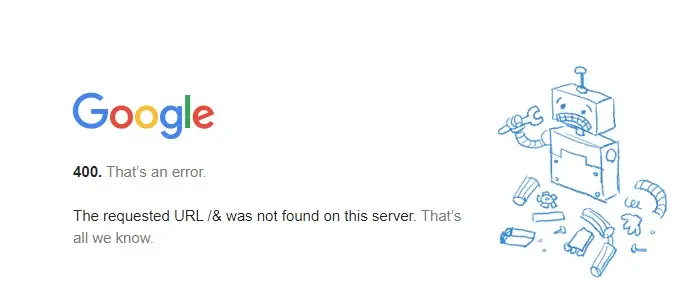
The “400 poor request” error occurs when the server cannot process the request due to deformed syntax. This usually occurs when the data sent by your web browser fails to follow the HTTP protocol standards. Potential causes include an unstable internet connection, safety issues within the operating system, cashing problems, or faulty browser.
How to Fix
To effectively fix website errors like a 400 Bad Request error, follow these steps to diagnose and correct the issue:
- Check Your Internet Connection: Ensure your internet connection is stable and strong, as a fluctuating connection can sometimes cause this error.
- Clear Browser Cache and Cookies: Remove stored cache, cookies, and DNS Flush in your browser. This often resolves issues stemming from outdated or corrupted data.
- Use a Different Browser: If the error persists, try accessing the site using a different web browser to determine if the issue is specific to the browser you originally used.
- Reset Your Browser Settings: Returning your browser to its default settings can help eliminate any configurations that might be causing the error.
- Run a Security Scan: Conduct a security scan on your system to check for malware or security threats that could be affecting your web browsing.
2. 403 Access Denied
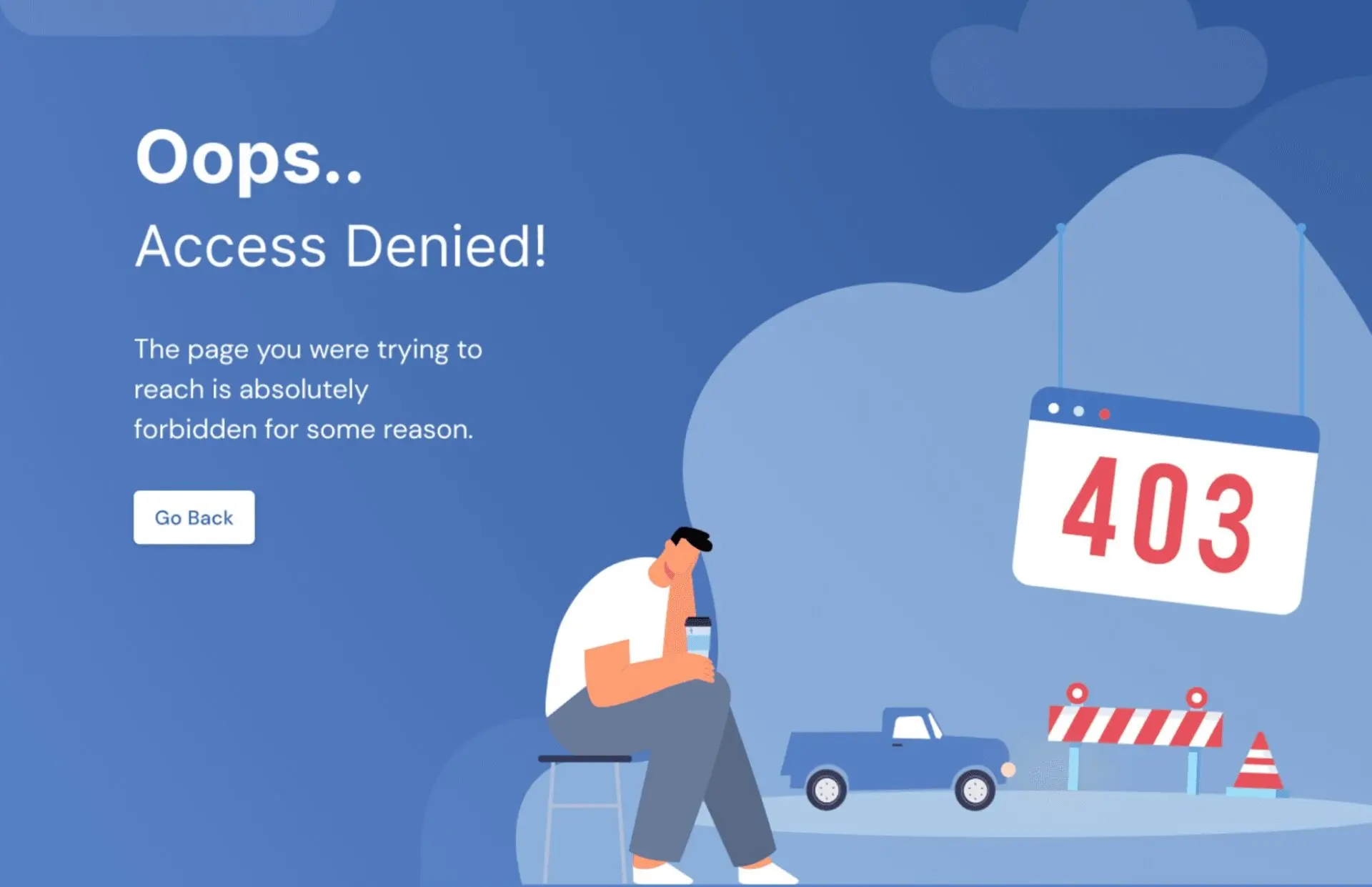
The “403 Access Denied” error is displayed when there’s an attempt to access a forbidden directory or file on a website. This usually occurs if the website’s configuration does not allow users to browse its file directory structure or if the requested file is explicitly restricted from web access. Implementing this restriction is a common security measure to prevent unauthorized access to sensitive or critical information.
How to Fix
To set up or manage 403 error protections on your site, follow these straightforward steps:
- Access Control Panel: Log in to your hosting service’s control panel.
- Navigate to Advanced Menu: Locate and select the ‘Advanced’ menu option.
- Open Index Manager: From the advanced menu, choose ‘Index Manager’ to manage file access permissions.
- Select Directory: Choose the directory you wish to secure from unauthorized access.
- Apply No Indexing: Set the directory to ‘No Indexing’ to prevent it from being listed and accessed, enhancing the security of your website against potential unauthorized access or hacking attempts.
3) 404 Not Found
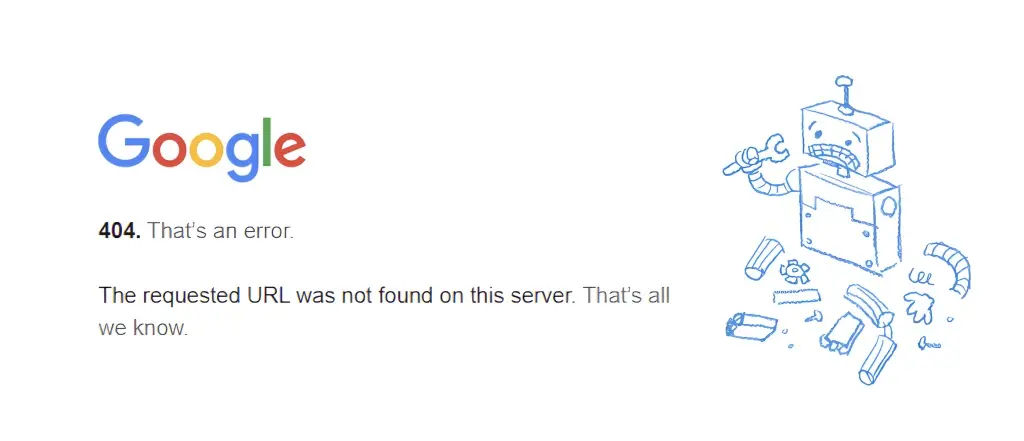
The “404 Not Found” error appears when a user tries to access a webpage that doesn’t exist on the server. This could be due to a mistyped URL, an outdated link pointing to a page that has been removed, or a server issue causing normally accessible pages to be temporarily unavailable. Although sometimes triggered by user actions like pressing the stop button or navigating too quickly, it’s often just a simple case of the server not finding what was requested.
How to Fix
To minimize the frequency of 404 errors and enhance your site’s user experience, follow these effective strategies:
- Update and Verify Links: Regularly ensure that all links on your website are accurate and up to date.
- Check for Broken Links: Use tools like Google Webmaster Tools or other third-party services to identify and fix broken links.
- Implement Redirects: For moved or deleted pages, set up redirects to relevant pages to maintain user experience and preserve SEO value.
- Customize Your 404 Page: Design a 404-error page that helps redirect visitors back to your homepage or other key areas of your site. This can significantly reduce your bounce rate and keep visitors engaged, even if they initially hit a dead end.
4) 408 Request Timed Out

The “408 Request Timed Out” error appears when the server does not receive a complete request from a user within the predetermined waiting period. This can occur if the server is under heavy load or if the user’s system is slow, possibly due to high internet traffic or local system performance issues.
How to Fix
If you encounter a 408 Request Timed Out error, follow these steps to potentially resolve the issue:
- Refresh the Webpage: Initially, try refreshing the page, as the error may be due to a temporary hiccup in data transmission.
- Reduce System Load: If refreshing doesn’t work, decrease the number of applications or downloads running on your system to free up bandwidth.
- Highly Optimized Website: Opt for highly optimized website templates in the latest frontend frameworks. For building websites in the front end, Nuxt js is becoming very popular these days. You can opt for ready-to-use use Nuxt js Templates, which can save you time and also help you to build websites that load fast without hunching for things.
- Try During Off-Peak Hours: Access the website during times when internet traffic is generally lower, which might help avoid delays in server response.
- Check Internet Connection: Ensure your internet connection is stable and strong enough to support efficient data transfers, helping prevent future timeouts.
5) 500 Internal Server Error
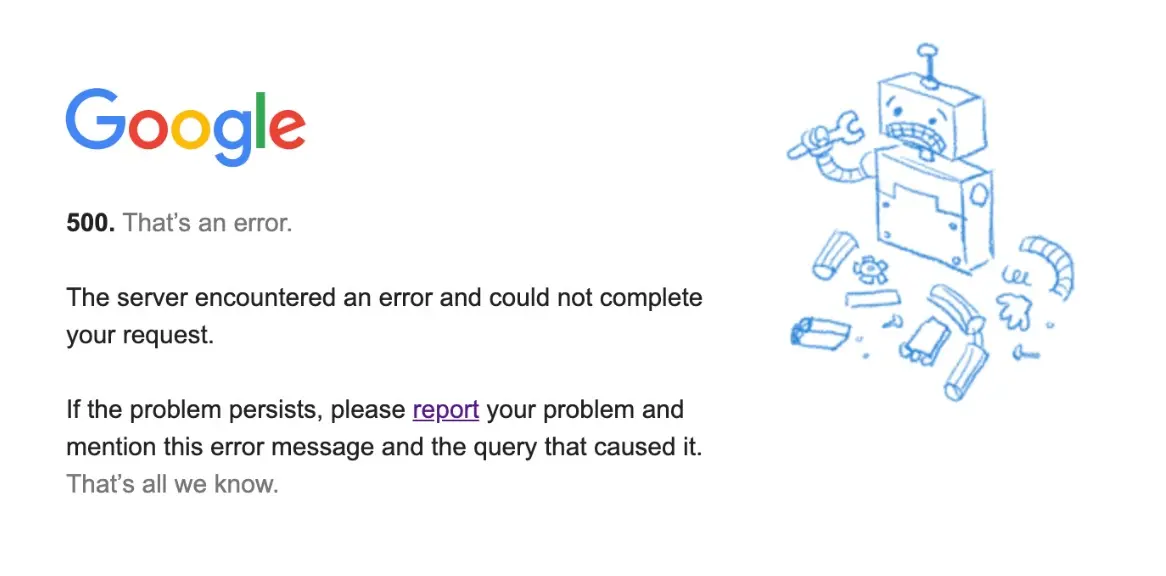
The “500 Internal Server Error” is a generic but common error encountered when a web server faces an internal issue that it cannot specify. This error can occur for various reasons, such as server overload, misconfigurations, or faulty scripts. While it’s a server-side error, there are a few actions you can take as a user to possibly resolve it. Website developers experience these errors frequently. Thus, they can handle the issue quite easily.
How to Fix
Here are some steps you can try if you encounter a 500 Internal Server Error:
- Reload the Page: Sometimes, simply refreshing the browser can resolve the error if it was caused by a temporary glitch.
- Clear Browser Cache and Cookies: Cached data and cookies can sometimes cause this error if they conflict with the website you’re trying to visit. Clearing these might help resolve the issue.
- Restart Your Browser: After clearing the cache and cookies, restart your browser to ensure all changes take effect.
- Contact Hosting Provider: If this error continues and you’re the site owner, contact your web hosting provider for a deeper investigation into server issues.
- Check Third-Party Plugins: For platforms like WordPress, disable plugins one by one to identify if a specific plugin is causing the error. This can be particularly useful if the error starts after a new plugin installation or update.
6) 501 Feature Not Available
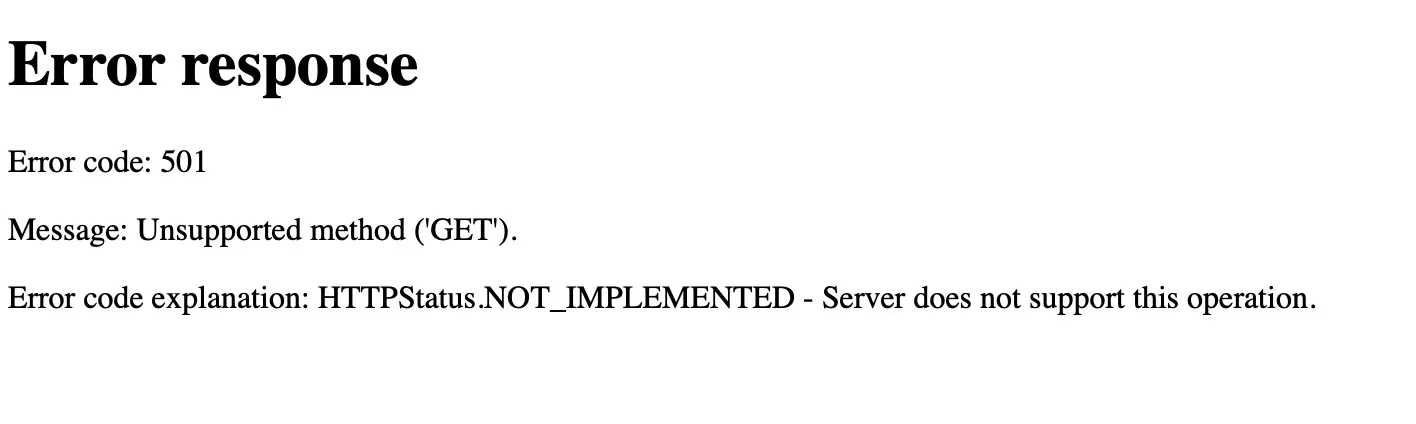
The “501 Feature Not Available” error indicates that the requested feature is not supported by the server or is not currently implemented. This error can arise when a browser requests a feature that the server or the website’s current setup does not recognize or support.
How to Fix
To prevent this error, it’s important to update your website’s technology stack regularly:
- Keep Software Updated: Ensure that all website components, from the server software to content management systems, are up-to-date. This helps in supporting newer features that users may request.
- Monitor Compatibility: Regularly check that your server and website are compatible with the latest web standards and browser technologies. This minimizes the chances of encountering unsupported feature requests.
- Educate Users: If certain features are not available, provide clear information to users about what is available or suggest alternative options on your website.
7) 502 Server Temporarily Overloaded
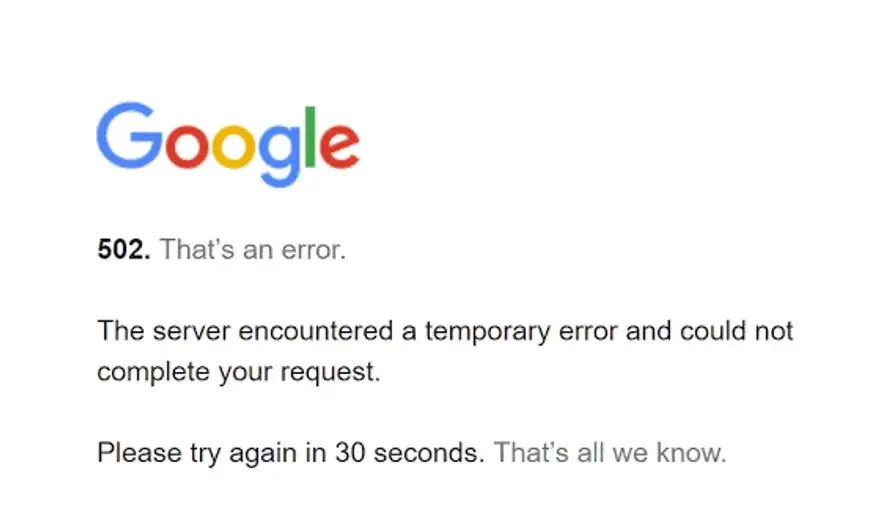
The “502 Server Temporarily Overloaded” error typically appears when the server is too congested to handle additional requests. This can be due to an unexpected surge in web traffic or underlying issues with the server or cloud hosting provider. This type of error can be tricky to fix, as it involves a web server, the proxies you have set for your website, and potentially a web unblocker. If you are sure about your technical skills, check the error. Otherwise, you know experts are there to help you.
How to Fix
Here are steps to address a 502 error:
- Wait it Out: Often, this issue resolves itself as web traffic normalizes, so giving it a little time can be beneficial.
- Contact Hosting Provider: If the error persists or you suspect it’s more than just high traffic, reach out to your hosting provider for assistance. They can provide insights into server health and help resolve any configuration issues.
- Monitor Server Health: Regularly check your server’s performance and load capacity to ensure it can handle expected traffic volumes and adjust resources as necessary.
8) 503 Service Temporarily Unavailable
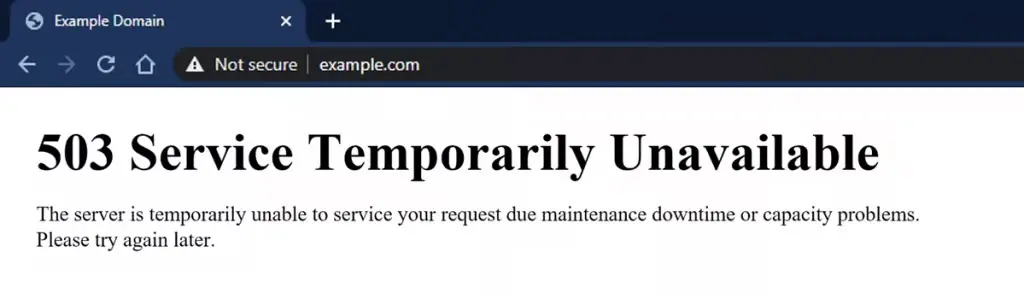
The “503 Service Temporarily Unavailable” error occurs when the server is temporarily unable to handle requests. This could be due to the server being too busy, undergoing maintenance, or experiencing downtime.
How to Fix
To address a 503 error, consider these actions:
- Be Patient: Since this error is typically temporary, waiting a few minutes and then retrying to access the website might resolve the issue.
- Contact Hosting Provider: If the error continues, get in touch with your hosting service provider. Persistent issues might indicate deeper problems that require professional intervention.
- Check Server Applications: Verify the status of applications running on the server. Overloaded applications can also trigger this error, so managing their load or restarting them may help.
9) Website Not Secure
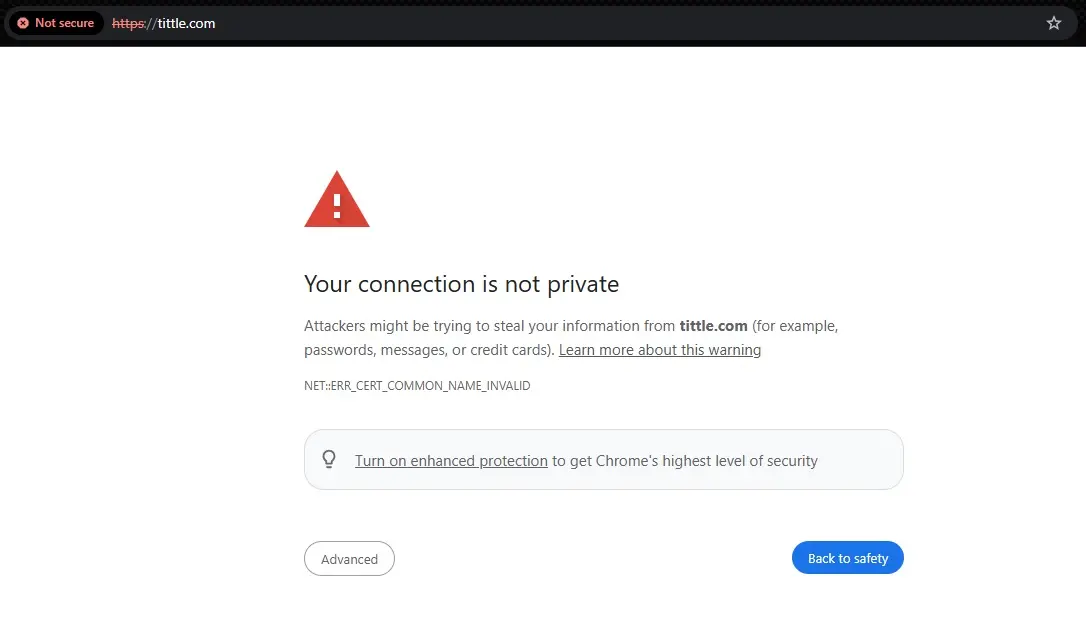
The “Website Not Secure” warning appears when a site is accessed over HTTP instead of HTTPS. This lacks the security layer of SSL/TLS encryption. The customer data available on your website is vulnerable to theft. So, it is your responsibility to keep it safe and secure by understanding how do VPNs work and how they can help encrypt user connections. This warning becomes especially prominent due to Google’s emphasis on secure browsing. That’s why sites without SSL certificates are flagged as “Not secure.”
How to Fix
To address this security warning and enhance your site’s trustworthiness:
- Implement SSL/TLS Certificate: Get an SSL certificate for your website to shift your website from HTTP to HTTPS. This encrypts the data exchanged between your server and visitors, securing their interactions.
- Ensure Proper SSL Configuration: Check that your SSL certificate is correctly installed and configured. Incorrect implementations can still lead to security warnings.
- Train Yourself: You might also want to consider attending a cyber security bootcamp. This provides you with a structured and focused learning experience that equips you with the skills, knowledge, and tools to ensure website security.
- Consider Professional Help: If you’re unsure how to proceed or want to guarantee a smooth transition, consider using services from CISSP certified professionals. They can handle the technical aspects and ensure that your SEO isn’t negatively affected by common pitfalls in SSL implementation.