There are cases in which you might want to remove bad backlinks from Google. Maybe because you purchased links from some untrustworthy SEO company or participated in link exchange schemes, or because you made the mistake of building low-quality unnatural links to your website. In this post, you will learn How to Remove Bad Backlinks from Google.
How To Remove Bad Backlinks from Google
1. Find toxic backlinks
There are two ways to find toxic links pointing to your website. The first is to analyze your link profile and identify bad links manually, and the second is to use a backlink removal tool. Before we get into the methods, you should understand what is considered a bad link (or toxic link). Removing good links from your website is not recommended, so you must ensure you don’t make any mistakes.
- Buying links from various websites, link directories, or blogs.
- Participating in link exchange schemes (I link to your website, and you link to mine).
- Guest posting with keyword-rich anchor text links.
- Massive link building (using automated programs to create links – usually in website comments).
2. Contact webmasters to remove the links
Once you identify which backlinks to remove (using any method), the next step is to contact the webmasters and ask them to either remove the links or add the no follow tag so that no PageRank is passed.
Depending on the nature of the links, it can be time-consuming, but it’s necessary to try this. You’ll need to prove to Google that you’ve been through this step when requesting to remove backlinks.
3. Get rid of pages with bad backlinks
Another solution you can consider is to delete the pages that have bad backlinks pointing to them. This is not a good or recommended solution, but it’s an option if the pages are low quality and unhelpful.
When Google tries to crawl the page, it will get a 404 error (not found). Over time, the value of the incoming links will lose their value.
4. Prepare a ‘disavow’ file
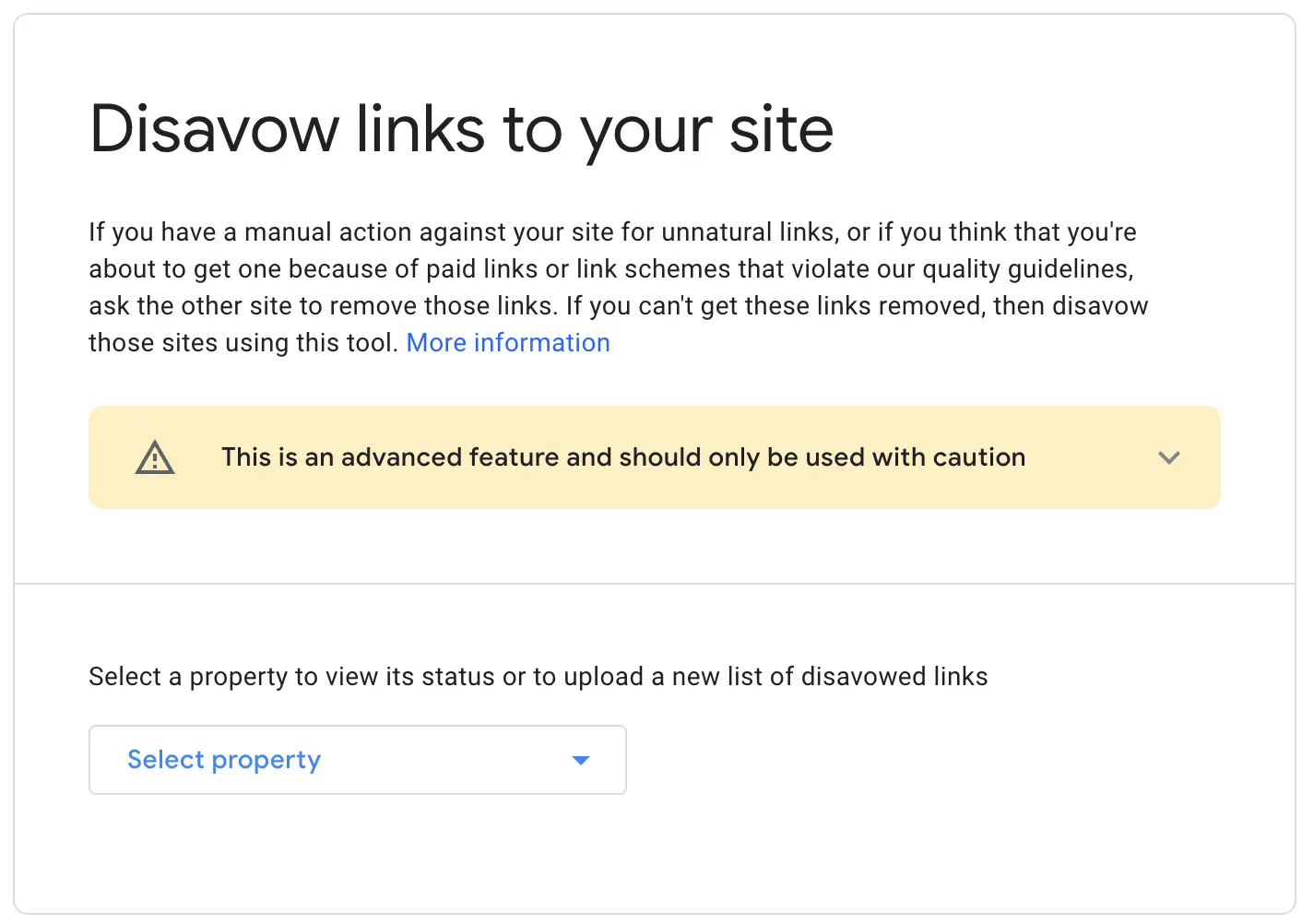
When everything else fails, and you cannot get the links removed by webmasters, you can use the Google Disavow tool. The Google Disavow tool is a feature that allows you to upload a file to Google with a list of links you don’t want Google to take into account. It is an advanced feature, and you should use it with caution. As stated by Google, if misused, it can do more harm to your website than good.
5. Submit ‘disavow’ file to Google
When you have your file ready, go to the Google Disavow tool.
- Select your domain from the list and click DISAVOW LINKS
- Click DISAVOW LINKS again to confirm that you want to use this advanced feature of the Google search console.
- Click CHOOSE FILE to select the disavow file, and then click SUBMIT.
Once submitted correctly, Google will summarize the number of links processed in the file and provide the option to upload a new file or download your existing file.
Important notes regarding the Google Disavow file
- Submit the file to all website variations, i.e., to your https:// and https://www versions.
- Whenever you want to add a new domain or links to the file, make sure that you keep the existing one.
- When you want to remove a link from the disavow file, re-submit the file again without those links.
- Instead of single URLs, use the domain (domain:example.com) to ensure that all links from that domain are removed from Google.
- Even if Google decides not to consider some links because they are included in the disavow file, they will still be shown in the Google search console.
Should I Remove Bad Backlinks?
In most cases, you should not remove bad backlinks from Google. Google’s algorithms are clever enough to ignore spammy links and those built for the sole purpose of tricking their system. When you follow Google Search Essentials and create websites that provide value to users, you don’t have to worry about toxic backlinks.
How To Find Bad Backlinks Using Google Search Console
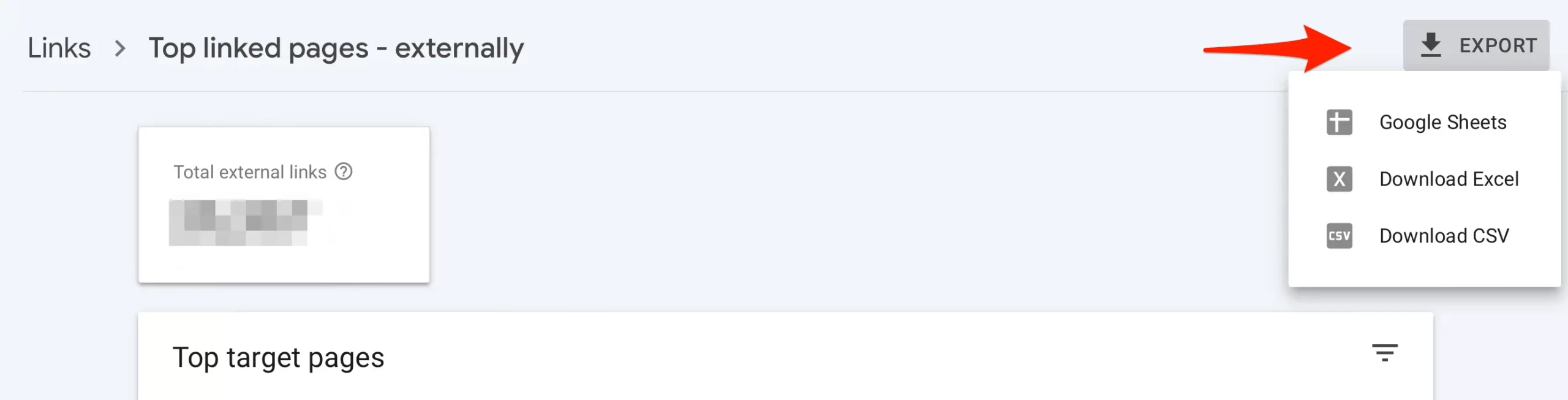
You can use Google Search Console to get a list of links pointing to your website that Google knows about. The list includes all links (good and bad, follow and no-follow). Google will not tell you which links are good or bad. You will have to export the links in an Excel spreadsheet and manually review each link to decide whether it is a good link or a potentially toxic link.
Here are the steps to do this:
- Step 1: Log in to Google Search Console. If you haven’t done this already, add and verify your website (all variations).
- Step 2: Click Links from the left menu.
- Step 3: Click more under ‘Top Linking Sites’.
What you see now is a list of all the domains that have links pointing to your website. You can click on any domain to see which pages your site links to.
That was the easy part. What you need to do now is to analyze each link and make a decision as to whether you want to keep it or drop it. Prepare a list of all the links you want to remove from your profile.